 shinbo
Scheduled workflows in Shinbo
Save a prompt with a cron trigger and Shinbo runs it as a thread while the app is open.
These guides describe the current development source. The published v0.9.2 release can differ; check release notes before following a workflow.
Scheduled graphs that run while you are away.
A workflow is a saved prompt with one trigger and, if you want, a small graph of steps. When the trigger fires, Shinbo opens a normal thread on your machine and runs it under the model and permission mode you saved.
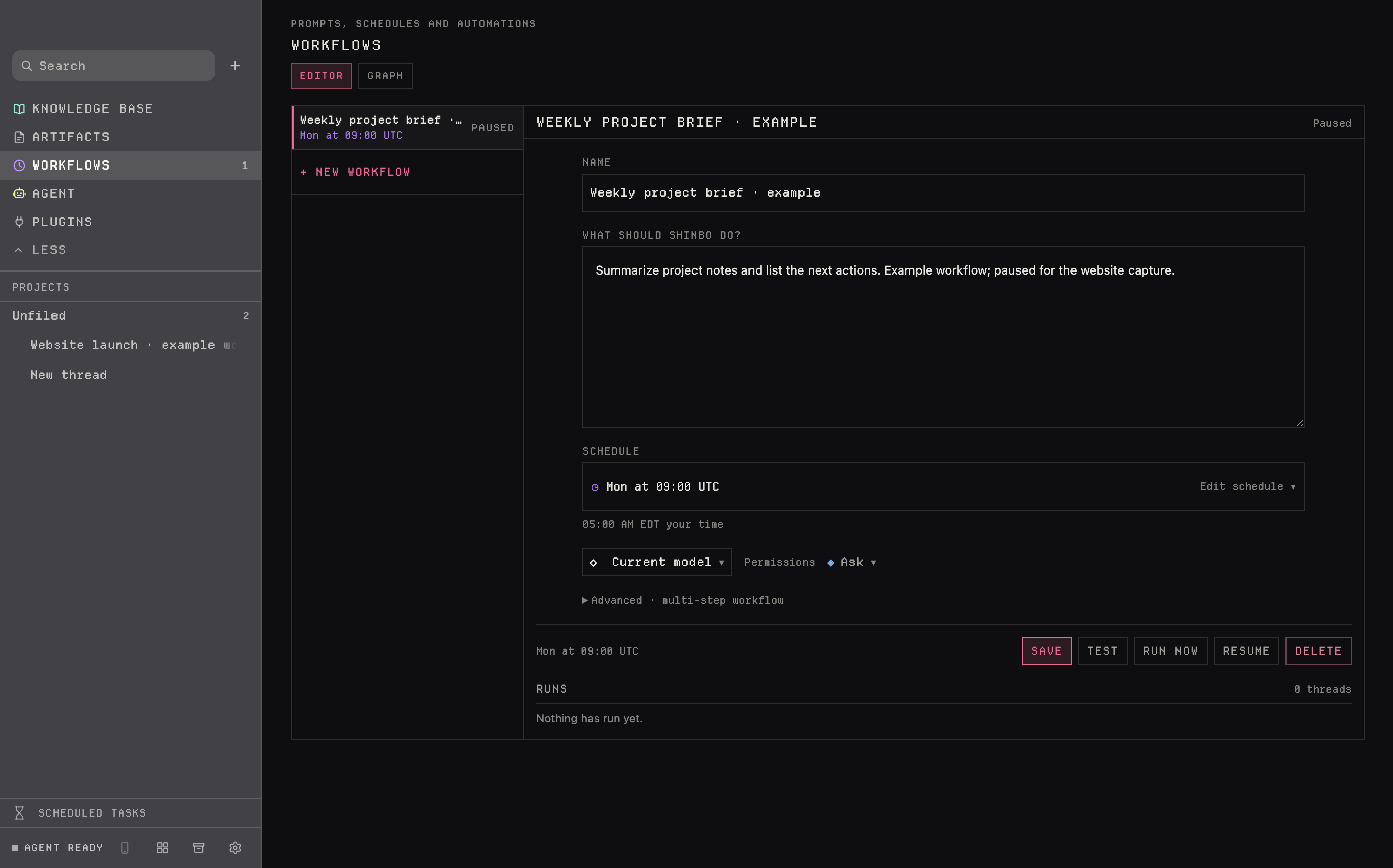
- Open Workflows in the sidebar and click + New workflow.
- Give it a name and write what Shinbo should do in the prompt box.
- Click Edit schedule and set the trigger. Cron times are UTC; the editor shows the same time in your zone underneath.
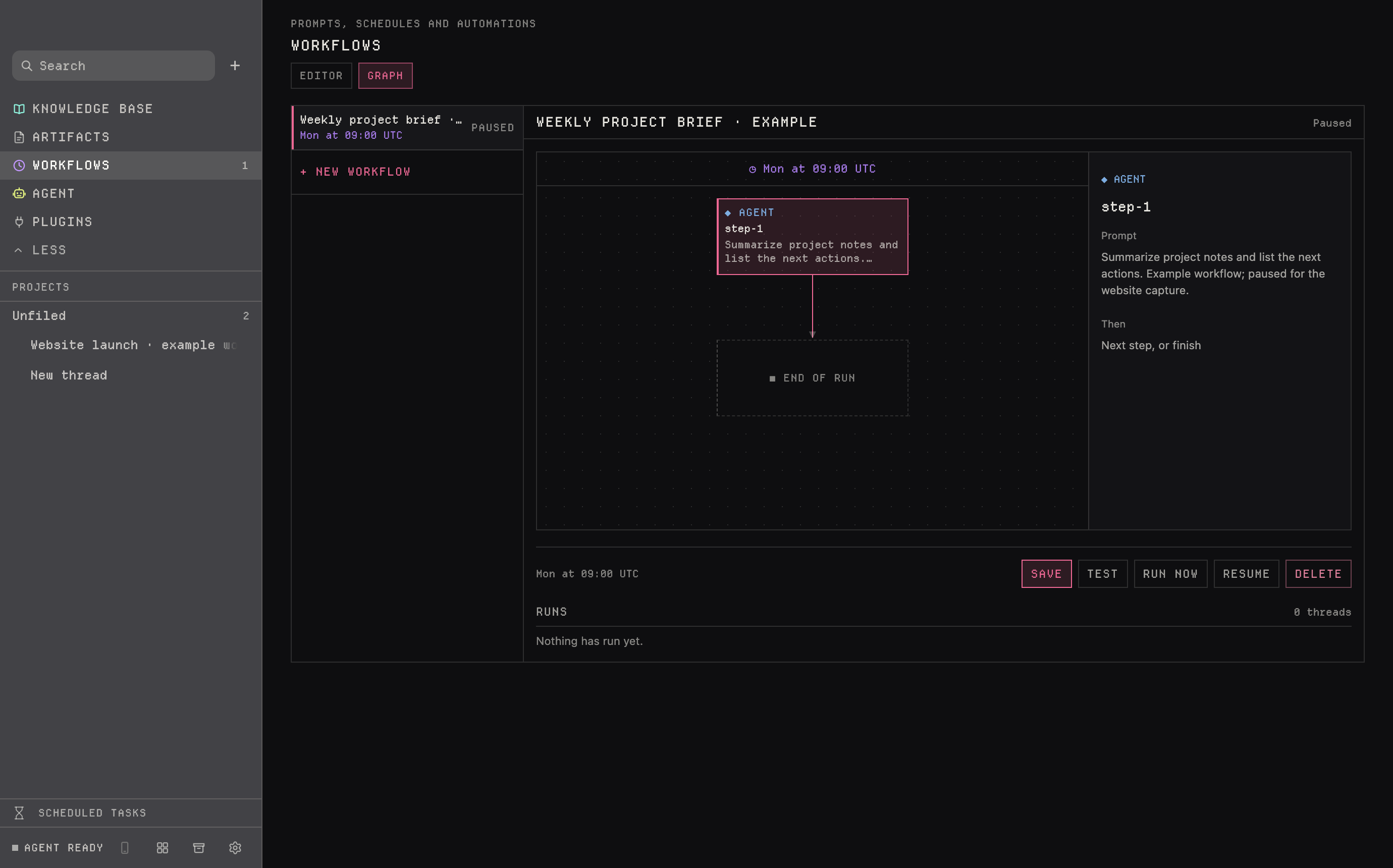
- Pick the model and the permission mode the run will use. Expand Advanced · multi-step workflow if you need script, set or if steps, and check the Graph tab to see the result.
- Save, then Test or Run now. Each run appears in the Runs list below the editor as its own thread.
Four trigger shapes
Every workflow has exactly one trigger. It is validated when you save and can be at most 128 characters.
| Shape | Example | Fires when |
|---|---|---|
| Cron | 0 9 * * 1 | five-field cron, always UTC — this one is Monday 09:00 |
| Manual | manual | only when you click Run now, or the agent calls it |
| After a job | after <job-id> | the named workflow finishes successfully |
| On an event | on <event> | the app raises that event |
Four node kinds
A plain workflow is one agent node. The advanced editor lets you chain up to 24 nodes. Each node names the one that follows it; "next": "end" finishes the run.
| Node | Does | Notes |
|---|---|---|
| agent | runs a model turn with a prompt | the only node that thinks; its answer becomes {{last}} |
| script | runs a file | no model involved |
| set | fills a variable | read it later as {{name}} |
| if | branches on one variable | is · is not · contains · does not contain · is empty · is not empty · > < >= <= |
Variables are written as {{name}} and read by any later node. A typical graph collects with a script, reasons with an agent, checks the answer with an if, and only then runs the step that acts.
A run is an ordinary thread: it appears in the sidebar and keeps its transcript. It uses the model and permission mode the workflow was saved with, not whatever you picked elsewhere. Saved under Ask, every gated call waits for you; save it under Auto or Full access if it has to finish unattended. See Control for what each mode allows.
Stop cancels the current turn or script and prevents any later node from starting. A node that fails ends the run: nodes that depended on it do not run, and workflows triggered with after this job do not fire. The agent can also start a job itself through the ask-gated workflow tool.
- Shinbo must be open and the computer awake. A closed app or a sleeping laptop skips the trigger; there is no hosted scheduler that runs it for you.
- Cron is UTC. Check the local time the editor shows under the schedule before you save.
- Only an agent node calls a model. Script, set and if nodes cannot reason, so put any judgement in an agent node before an if.
- Runs are real threads and cost whatever the model route costs. Free routes are subject to provider availability.
Related: Control for the mode a job runs under, Plan for graphs inside a single turn, Tools for the workflow tool.